
Build an Interactive Learning Tool
Create engaging, interactive HTML learning tools (quizzes, flashcards, practice exercises) by describing your learning objectives. No coding required.
Quick Navigation
- Overview - Problem, solution, and what you'll achieve
- Step-by-Step Setup — How to set up
- Instruction Examples — Copy-paste prompts for 3 learning tool types
- Review & Refine — Verify and correct output
- How to Improve Results — Tips and best practices
- Troubleshooting — Common issues and solutions
Overview
Problem It Solves
Creating interactive learning materials is challenging:
- Static materials don't engage learners effectively
- Technical skills required to build interactive content with traditional tools
- No self-paced practice opportunities for learners
- Manual grading needed for quizzes and exercises
- Complex concepts are hard to make hands-on and memorable
Common Pain Point
Creating interactive learning tools traditionally takes days or weeks of development time, requiring coding skills or expensive authoring tools.
Why This Is Different with FabriXWork
Traditional Development:
Write content → Hire developer → Build tool → Test → Revise → Deploy
                                              ↑                    │
                                              └──── Need changes? Start over ────────┘
With FabriXWork:
FabriXWork agent builds a functional interactive HTML learning tool from your content. No coding, no external tools, no deployment needed.
Your Content → Agent → "Build learning tool" → Done
      ↑              │
      └── Update content, regenerate ──┘
Key Advantage
No coding required. Describe your learning objectives in natural language. Get a self-contained HTML file that works on any device.
What You Will Achieve
By following this guide, you will be able to:
✅ Create a working interactive web tool in 30-60 minutes
✅ No coding required — describe what you need in natural language
✅ Learners get instant feedback on their responses
✅ Tool works on any device with a web browser
✅ Easy to update or expand content later
Time to complete: 30-60 minutes (vs. days/weeks with traditional development)
Output: Interactive HTML file (can be opened in any web browser, no server needed)
Complexity Level: 🟡 Intermediate
Learning Tool Types Demonstrated in This Guide
This guide demonstrates 3 common learning tool types with ready-to-use prompts.
| Type | Goal | Example Use Case |
|---|---|---|
| Flashcards | Memorize terms and definitions | Language learning, medical terminology |
| Quiz/Trivia | Test knowledge and understanding | Training assessments, exam prep |
| Practice Exercises | Apply concepts and get feedback | Math problems, coding challenges |
Not seeing your exact tool type?
The prompts below are templates. Adapt the structure, features, and content to match your specific learning objectives.
Step-by-Step Setup
Step 1: Prepare Your Content
Before starting, gather:
- Topic: What is your learning tool about?
- Learning objective: What should learners be able to do after using this?
- Target audience: Who will use this? (students, trainees, workshop participants)
- Learning content: The information learners need to master (notes, facts, procedures, formulas)
- Question/answer pairs: If building a quiz or flashcard tool (can be extracted from your content)
Step 2: Choose Your Agent
You can use any AI agent in FabriXWork to build learning tools.
- If you already have an agent: Use the agent you're currently working with (they already know your context and content)
- If you need a new agent: For learning tools, Dev - Developer is recommended for building functional HTML/CSS/JavaScript applications
- If you haven't added any agent yet: Follow the Add Your First Agent guide first
Step 3: Connect Your Folder
Skip This Step If...
You're already working with an agent and your files are in the connected folder. Only follow this step if you're adding a new agent or need to connect a different folder.
If you are adding a new agent:
Follow Connect to Local Folder to connect your agent to a local folder.
If you want to connect a different folder:
- Select your agent from the sidebar
- In the right panel, click "Change" to connect a folder
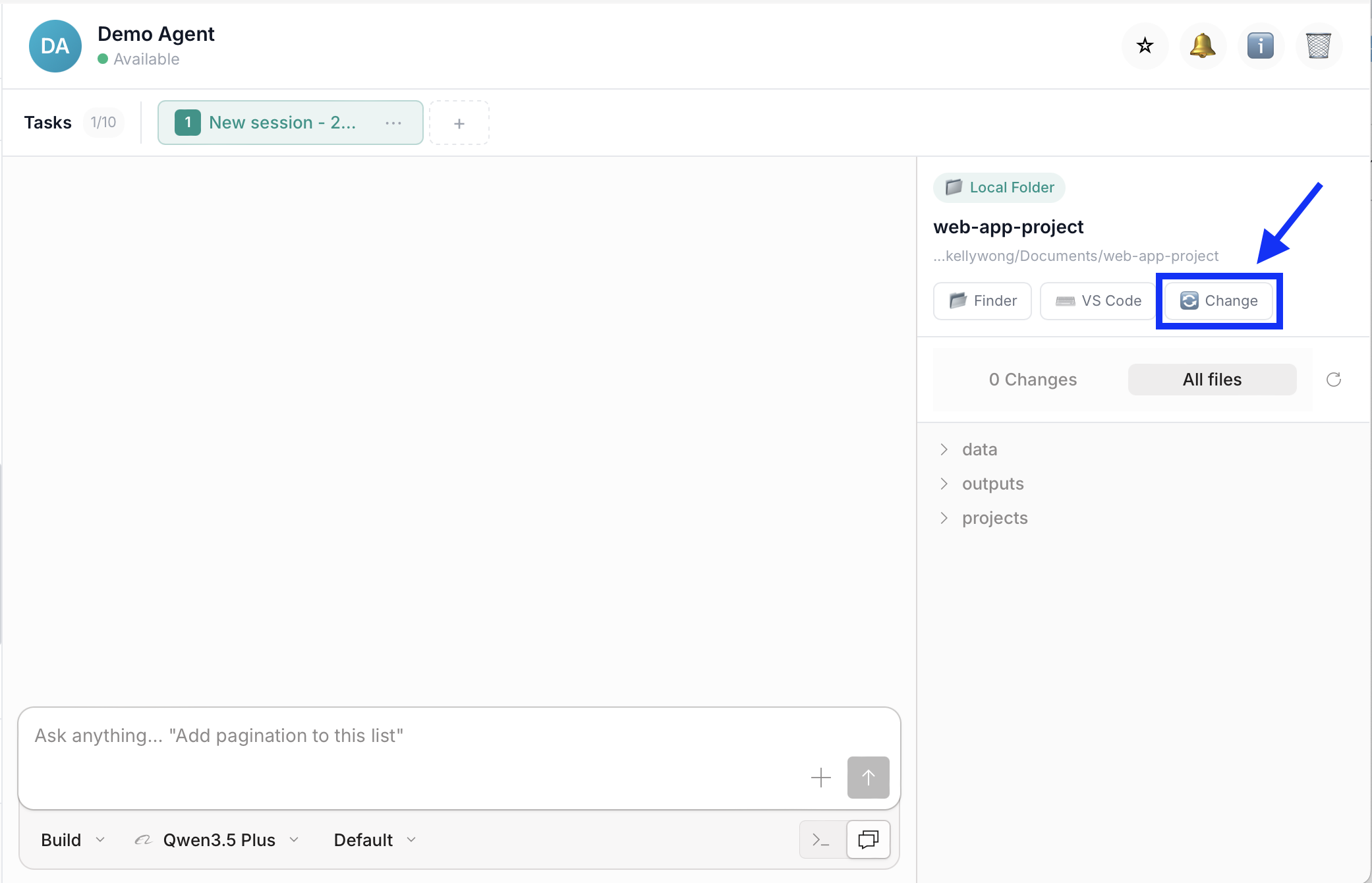
- Add your files into that folder
Step 4: Give Your Instruction
To build your learning tool, use one of the instruction examples in the next section as your starting point. Choose the example that best matches your tool type, then replace the sample file names and details with your own.
How to Use These Templates
The prompts below are templates, replace the [PLACEHOLDER] text with your specific details:
[TOOL TYPE]→ Flashcards, Quiz, Practice Exercises[SOURCE-FILE.xlsx]→ Your content filenames[LEARNING OBJECTIVE]→ What learners should achieve- Adjust features to match your needs
Recommended Workflow: Plan First, Then Build
For complex learning tools, use a two-step approach for best results:
Step 1 - Plan Mode: Ask your agent to analyze your content and propose a structure before building. This helps validate that the agent understands your learning objectives, identifies missing content early, and allows you to adjust the structure before code is written.
Step 2 - Build Mode: Once you approve the plan, ask your agent to build the tool following the approved structure. This reduces revisions and ensures better quality since the agent has time to think through the architecture.
👇 How to Switch Modes:
Click the mode selector dropdown under the input box and choose between Plan or Build:
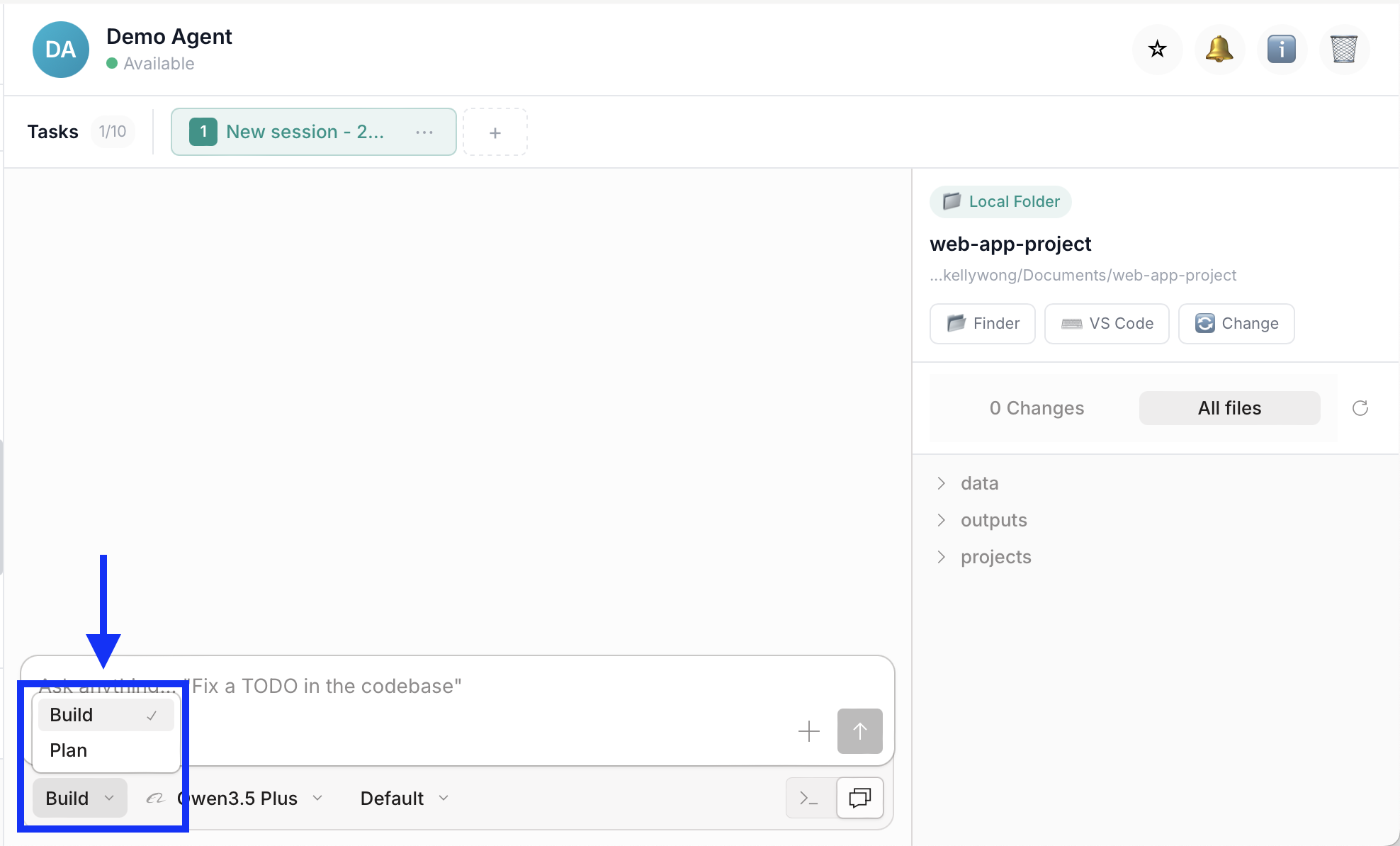
Start in Plan mode to review the proposed structure, then switch to Build mode to create the final tool.
💡 Why this workflow is more effective: Catches issues early (easier to adjust a plan than refactor code), aligns expectations, reduces revisions, and results in better quality output.
Instruction Examples
Example 1: Flashcards - Programming Terminology
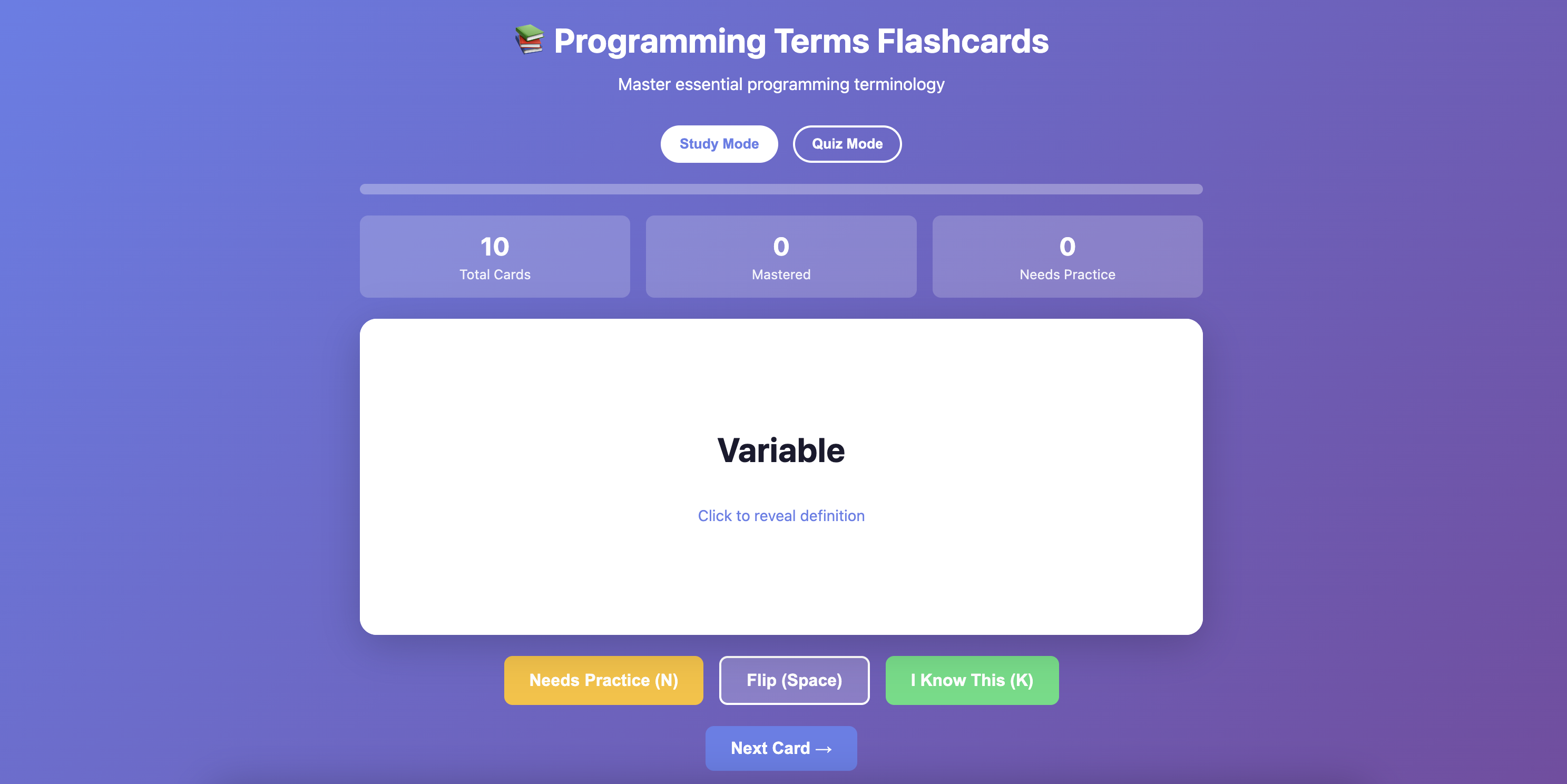
When to Use This Type
Use for: Memorizing terms and definitions, vocabulary learning, concept review, exam preparation
Background: You have a list of programming terms and definitions that learners need to memorize. You want to create a digital flashcard app with self-testing features that learners can use on any device.
Files Ready in Your Folder:
[TERMS-FILE.xlsx]— [Description, e.g., "50 programming terms with definitions and code examples"][OPTIONAL: logo.png]— [Optional branding asset]
Your Prompt:
💡 Pro Tip: Use Plan Mode first (see workflow above) to review the proposed structure before building.
Build a flashcard app for learning [TOPIC, e.g., programming terminology].

Context:
- Learning objective: [What should learners achieve, e.g., "Memorize 50 programming terms and their definitions"]
- Target audience: [Who will use this, e.g., "Beginner coding students (ages 16+)"]
- Usage context: [Self-study, classroom, exam preparation]

Source Materials:
- [TERMS-FILE.xlsx] — [Description of content, e.g., "50 terms with definitions and code examples"]

Tool Type: Flashcards with quiz mode

Key Features:
- Flip card animation (click to reveal definition)
- Mark cards as "known" or "needs practice"
- Quiz mode: show definition, select correct term from 4 options
- Track progress (show % of cards mastered)
- Shuffle cards each session
- [Add/remove features based on your needs]

Technical Requirements:
- Single HTML file (all CSS and JavaScript inline)
- Responsive design (works on desktop, tablet, mobile)
- No external dependencies
- Clean, modern interface
- Touch-friendly for tablet users

UI/Style:
- Color scheme: [Specify or "professional and clean"]
- Include progress bar at top
- Large, readable text for content
- Clear visual feedback for interactions

Instructions:
1. Read the source file and extract all terms
2. Create flashcard interface with flip animation
3. Implement quiz mode with multiple choice
4. Add progress tracking using localStorage
5. Include "Show Hint" option for difficult cards
6. Add keyboard shortcuts for navigation
7. Ensure all interactions work on touch devices

Output Format:
- Self-contained HTML file with inline CSS and JavaScript
- Enable keyboard navigation
- Save progress to localStorage
- Include instructions screen for first-time users

Save to: [your-folder]/index.html
Expected Output:
Interactive flashcard app with flip animations, quiz mode, progress tracking, and keyboard/touch navigation.
Customization Tips
For the programming flashcards example:
[Learning objective]→ "Memorize 50 programming terms and their definitions"[Key Features]→ "Flip card animation, mark known/needs practice, quiz mode, progress tracking"[UI/Style]→ "Blue and white, professional, include progress bar"
For language learning:
[Learning objective]→ "Learn 100 Spanish vocabulary words"[Key Features]→ "Show Spanish word, flip to reveal English + example sentence"[UI/Style]→ "Colorful, engaging, include audio pronunciation"
Flashcard Tool Tips
✅ Do: Include progress tracking, add quiz mode for variety, support keyboard shortcuts
❌ Don't: Make cards too text-heavy, skip mobile/touch support, forget to save progress
Example 2: Quiz/Trivia - Safety Training Assessment
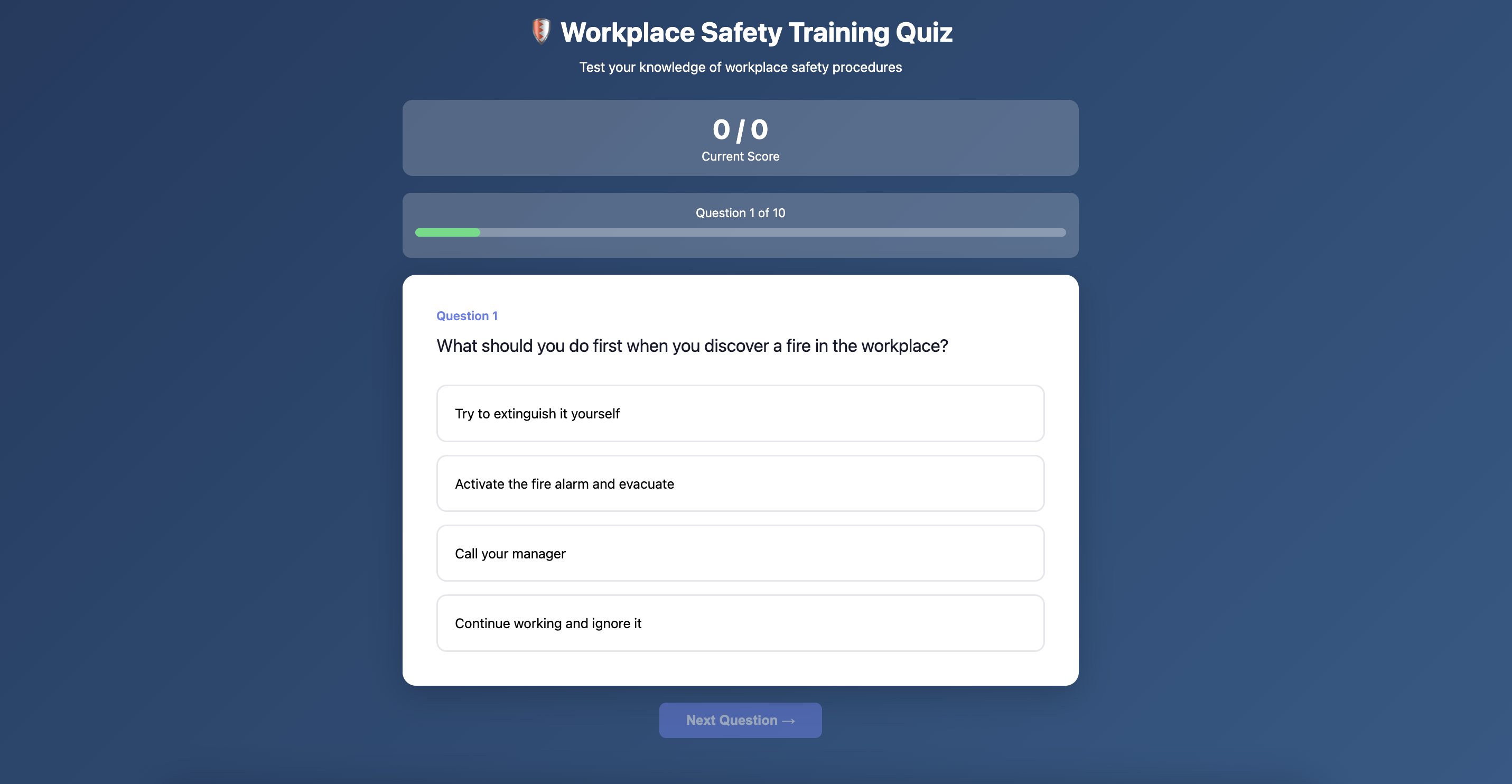
When to Use This Type
Use for: Knowledge assessments, training quizzes, exam preparation, certification practice
Background: You need to create a quiz to assess learners' understanding of workplace safety procedures. The quiz should provide instant feedback and track scores.
Files Ready in Your Folder:
[QUESTIONS-FILE.xlsx]— [Description, e.g., "30 safety questions with correct answers and explanations"][REFERENCE-DOC.pdf]— [Optional, e.g., "Safety procedures manual for reference"]
Your Prompt:
💡 Pro Tip: Use Plan Mode first (see workflow above) to review the proposed structure before building.
Build an interactive quiz app for [TOPIC, e.g., workplace safety training].

Context:
- Learning objective: [e.g., "Assess understanding of workplace safety procedures"]
- Target audience: [e.g., "New employees during onboarding"]
- Usage context: [e.g., "Self-paced training module"]

Source Materials:
- [QUESTIONS-FILE.xlsx] — [Description, e.g., "30 questions with correct answers and explanations"]

Tool Type: Quiz/Trivia with multiple choice

Key Features:
- Show one question at a time with 4 answer options
- Instant feedback after each answer (correct/incorrect + explanation)
- Track score throughout quiz
- Show final score with percentage at end
- Randomize question order each session
- [Add/remove features based on your needs]

Technical Requirements:
- Single HTML file (all CSS and JavaScript inline)
- Responsive design (works on desktop, tablet, mobile)
- No external dependencies
- Clean, professional interface

UI/Style:
- Color scheme: [Specify or "professional and clean"]
- Show progress indicator (Question X of Y)
- Clear visual feedback for correct/incorrect answers
- Large, readable text

Instructions:
1. Read the source file and extract all questions
2. Create quiz interface with one question at a time
3. Provide instant feedback with explanations
4. Track and display score
5. Randomize question order
6. Add keyboard navigation (1-4 for answers, Enter for next)
7. Show summary screen at end with score and review option

Output Format:
- Self-contained HTML file with inline CSS and JavaScript
- Enable keyboard navigation
- Save score to localStorage
- Include instructions and summary screens

Save to: [your-folder]/index.html
Expected Output:
Interactive quiz app with instant feedback, score tracking, randomized questions, and summary screen.
Customization Tips
For the safety training quiz example:
[Learning objective]→ "Assess understanding of workplace safety procedures"[Key Features]→ "Instant feedback, score tracking, randomize questions, show explanations"[UI/Style]→ "Professional, high contrast for accessibility"
For product knowledge quiz:
[Learning objective]→ "Test sales team's product knowledge"[Key Features]→ "Timer per question, leaderboard, detailed results"[UI/Style]→ "Brand colors, engaging, gamified"
Quiz Tool Tips
✅ Do: Provide explanations for each answer, randomize question order, show progress indicator
❌ Don't: Make questions ambiguous, skip feedback, forget to show final score
Example 3: Practice Exercises - Math Problem Solver
When to Use This Type
Use for: Math practice, coding challenges, skill-building exercises, hands-on learning
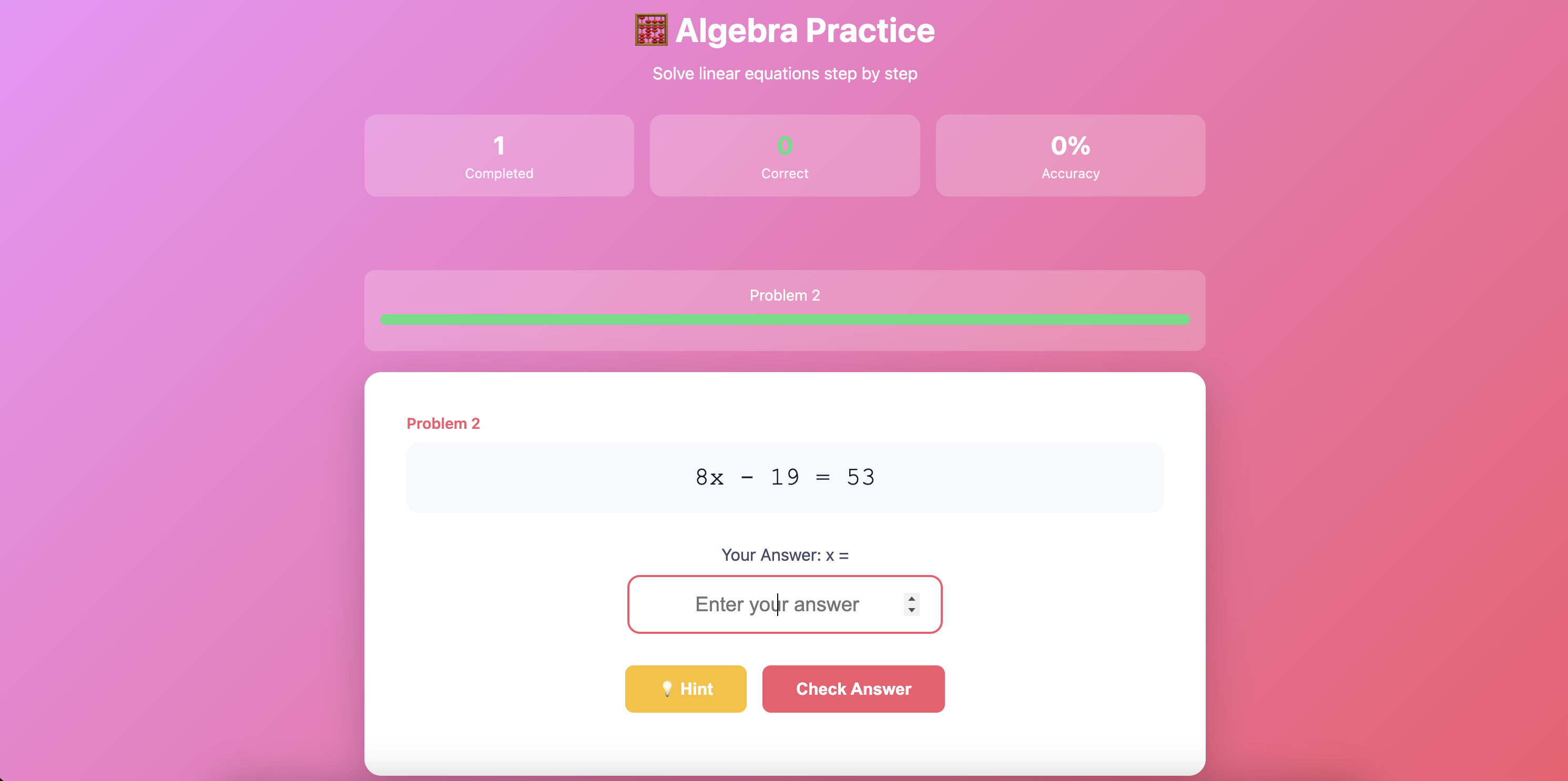
Background: You want to create a practice tool where learners can solve math problems and get instant feedback with step-by-step explanations.
Files Ready in Your Folder:
[PROBLEMS-FILE.xlsx]— [Description, e.g., "50 algebra problems with solutions and step-by-step breakdowns"][FORMULAS-DOC.pdf]— [Optional, e.g., "Formula reference sheet"]
Your Prompt:
💡 Pro Tip: Use Plan Mode first (see workflow above) to review the proposed structure before building.
Build a practice exercise tool for [TOPIC, e.g., algebra problems].

Context:
- Learning objective: [e.g., "Practice solving algebraic equations with instant feedback"]
- Target audience: [e.g., "High school students (ages 14-18)"]
- Usage context: [e.g., "Self-study and homework practice"]

Source Materials:
- [PROBLEMS-FILE.xlsx] — [Description, e.g., "50 problems with solutions and step-by-step breakdowns"]

Tool Type: Practice Exercises with answer checking

Key Features:
- Display one problem at a time
- Input field for learner's answer
- Check answer and provide instant feedback
- Show step-by-step solution after attempt
- Offer hints if learner is stuck
- Track completed problems and accuracy
- [Add/remove features based on your needs]

Technical Requirements:
- Single HTML file (all CSS and JavaScript inline)
- Responsive design (works on desktop, tablet, mobile)
- No external dependencies
- Clean, student-friendly interface

UI/Style:
- Color scheme: [Specify or "engaging and encouraging"]
- Large input field for answers
- Clear feedback (green for correct, orange for incorrect)
- Progress tracker showing completed problems

Instructions:
1. Read the source file and extract all problems
2. Create practice interface with input field
3. Implement answer checking with tolerance for formatting
4. Show step-by-step solutions after attempt
5. Add hint system for difficult problems
6. Track progress and accuracy
7. Accept variations in answer format (spacing, capitalization)

Output Format:
- Self-contained HTML file with inline CSS and JavaScript
- Enable keyboard navigation (Enter to submit)
- Save progress to localStorage
- Include encouragement messages

Save to: [your-folder]/index.html
Expected Output:
Interactive practice tool with answer checking, step-by-step solutions, hints, and progress tracking.
Customization Tips
For the math practice example:
[Learning objective]→ "Practice solving algebraic equations with instant feedback"[Key Features]→ "Input field, answer checking, step-by-step solutions, hints"[UI/Style]→ "Engaging, encouraging, progress tracker"
For coding challenges:
[Learning objective]→ "Practice Python programming concepts"[Key Features]→ "Code editor, test cases, instant feedback, solution comparison"[UI/Style]→ "Dark theme, monospace font, syntax highlighting"
Practice Tool Tips
✅ Do: Accept answer variations, provide hints, show step-by-step solutions, track progress
❌ Don't: Be too strict on formatting, skip explanations, forget to save progress
Review & Refine
Important: Always Review AI-Generated Output
AI agents are powerful assistants, but human review is essential. Always verify the generated output before using, sharing, or submitting it.
What to Check
After your agent generates the output, review for:
- Accuracy — Verify content, answers, and explanations match your source documents
- Completeness — Ensure all questions/problems are included
- Functionality — Test all interactions (buttons, inputs, navigation) work correctly
- Formatting — Check that the design is clean and appropriate for your audience
How to Request Corrections
If you find issues, continue the conversation with your agent:
For content errors:
"Question [X] has [incorrect answer/explanation]. Please use the correct information from [source document] and regenerate."
For missing content:
"The tool is missing [specific questions/problems] from [source document]. Please add them."
For functionality issues:
"The [button/input/feature] doesn't work on [mobile/desktop]. Please fix the interaction."
For refinements:
"The interface is too [cluttered/plain]. Please adjust to be more [clean/engaging]."
Best Practices
✅ Do: Test all interactions, verify content accuracy, check on multiple devices
❌ Don't: Deploy without testing, assume all content is correct, skip mobile testing
Remember
Your agent is a collaborative tool. The best results come from AI efficiency + human oversight.
How to Improve Results
Tip 1: Provide Structured Content Files
✅ Good: Spreadsheet with columns: Term | Definition | Example | Category
❌ Vague: "Here's a document with some information"
Tip 2: Be Specific About Learning Objectives
✅ Good: "Learners should be able to identify all 50 programming terms and explain their purpose"
❌ Vague: "Help learners study programming"
Tip 3: Specify Interaction Patterns
✅ Good: "Show term on front, click to flip and reveal definition + example on back"
❌ Vague: "Make it interactive"
Tip 4: Define Feedback Behavior
✅ Good: "When learner answers correctly, show green checkmark and explanation. When incorrect, show correct answer with hint to try again"
❌ Vague: "Give feedback"
Tip 5: Request Progress Tracking
✅ Good: "Save progress to localStorage so learners can close and resume later. Show progress bar with % completed"
❌ Vague: "Remember progress"
Tip 6: Specify Device Requirements
✅ Good: "Must work on tablets — large touch targets (min 44px), no hover-dependent interactions, support both keyboard and touch"
❌ Vague: "Make it responsive"
Tip 7: Test in Browser
After generating the HTML file:
- Open in Chrome/Safari/Edge/Firefox
- Test keyboard navigation and touch interactions
- Verify progress saves after refresh
- Check that all interactions work smoothly
- Test on mobile/tablet if possible
If you notice any areas that need improvement, take a screenshot or describe the issue and ask the AI agent to refine it.
Troubleshooting
General Issues
| Issue | Likely Cause | What to Try |
|---|---|---|
| Content not loaded from files | Source file not in connected folder | "Check if source file is in connected folder. Use common formats (XLSX, CSV, DOCX)" |
| Interactions don't work on mobile | Touch support not implemented | "Ensure all interactions work with touch — no hover-dependent features, min 44px touch targets" |
| Answers marked wrong incorrectly | Answer checking too strict | "Accept variations in formatting, capitalization, and spacing. Trim whitespace before comparing" |
| Progress resets on refresh | localStorage not implemented | "Save progress to localStorage so it persists across sessions. Load saved progress on page load" |
| Tool looks broken on projector | Design not optimized for large screens | "Design for large-screen display — minimum 24px text, high contrast, bold headings" |
| File won't open | Incomplete HTML structure | "Ensure file extension is .html and has complete HTML structure with <html>, <head>, <body> tags" |
Tool-Specific Issues
| Issue | Tool Type | What to Try |
|---|---|---|
| Cards don't flip | Flashcards | "Add flip animation with CSS transform. Ensure click handler is attached to card element" |
| Quiz doesn't randomize | Quiz | "Implement Fisher-Yates shuffle algorithm for question array on each session" |
| Input validation too strict | Practice | "Accept common variations: '5' and 'five', ignore trailing spaces, case-insensitive" |
| No explanations shown | Quiz/Practice | "Include explanation field from source file. Show after each answer attempt" |
| Score doesn't save | Quiz | "Save score to localStorage after each question. Display running total" |
Related Use Cases
- Create Presentation Slides from Your Documents — Create presentation slides to introduce the topic, then use this interactive tool for practice and reinforcement
- Customer Insight & Strategy Recommendations — Analyze learner feedback or performance data to improve your learning tools