
Installation
This guide covers installation for both macOS and Windows. Choose your operating system below.
- For macOS user, please refer to macOS Installation.
- For Windows user, please refer to Windows Installation.
macOS Installation
Step 1: Download the Application
- Download the FabriXWork ZIP file from the provided link
- Save it to your Downloads folder (or preferred location)
Step 2: Unzip the File
- Double-click the ZIP file to extract its contents
- You should see the FabriXWork application file (
FabriXWork.app)
Step 3: Move to Applications Folder
- Drag the
FabriXWork.appfile to your Applications folder - Alternatively, keep it in your preferred location
Step 4: First Launch & Security Warning
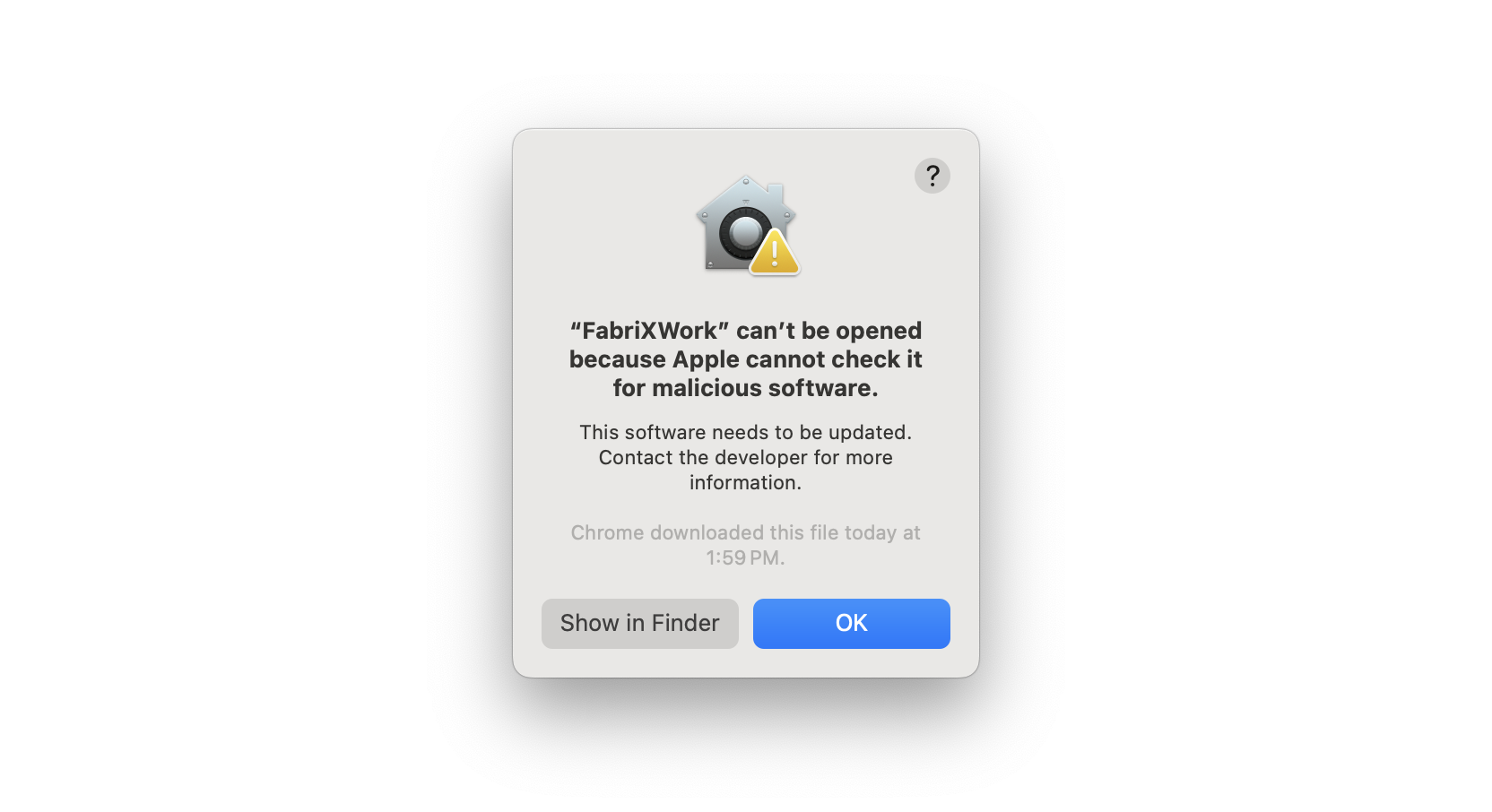
If you see this message: On first launch, macOS may show a security warning:
To open the app:
- Click OK on the warning dialog
- Go to System Settings → Privacy & Security
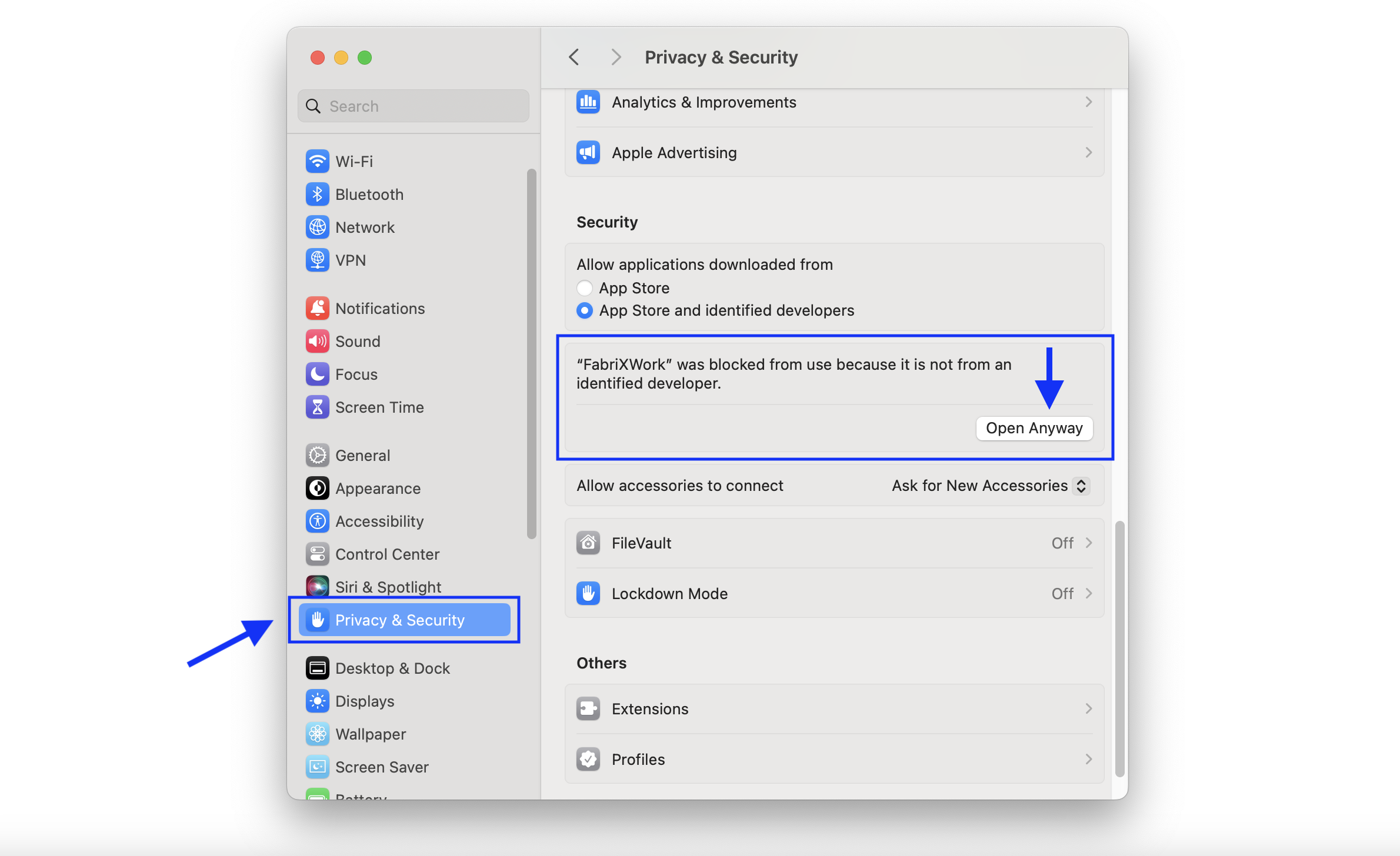
- Scroll down to find the security message about FabriXWork
- Click Open Anyway
- Confirm by clicking Open in the dialog
Step 5: First Login
- Launch FabriXWork from Applications (or your chosen location)
- Enter your organization ID (provided by your administrator)
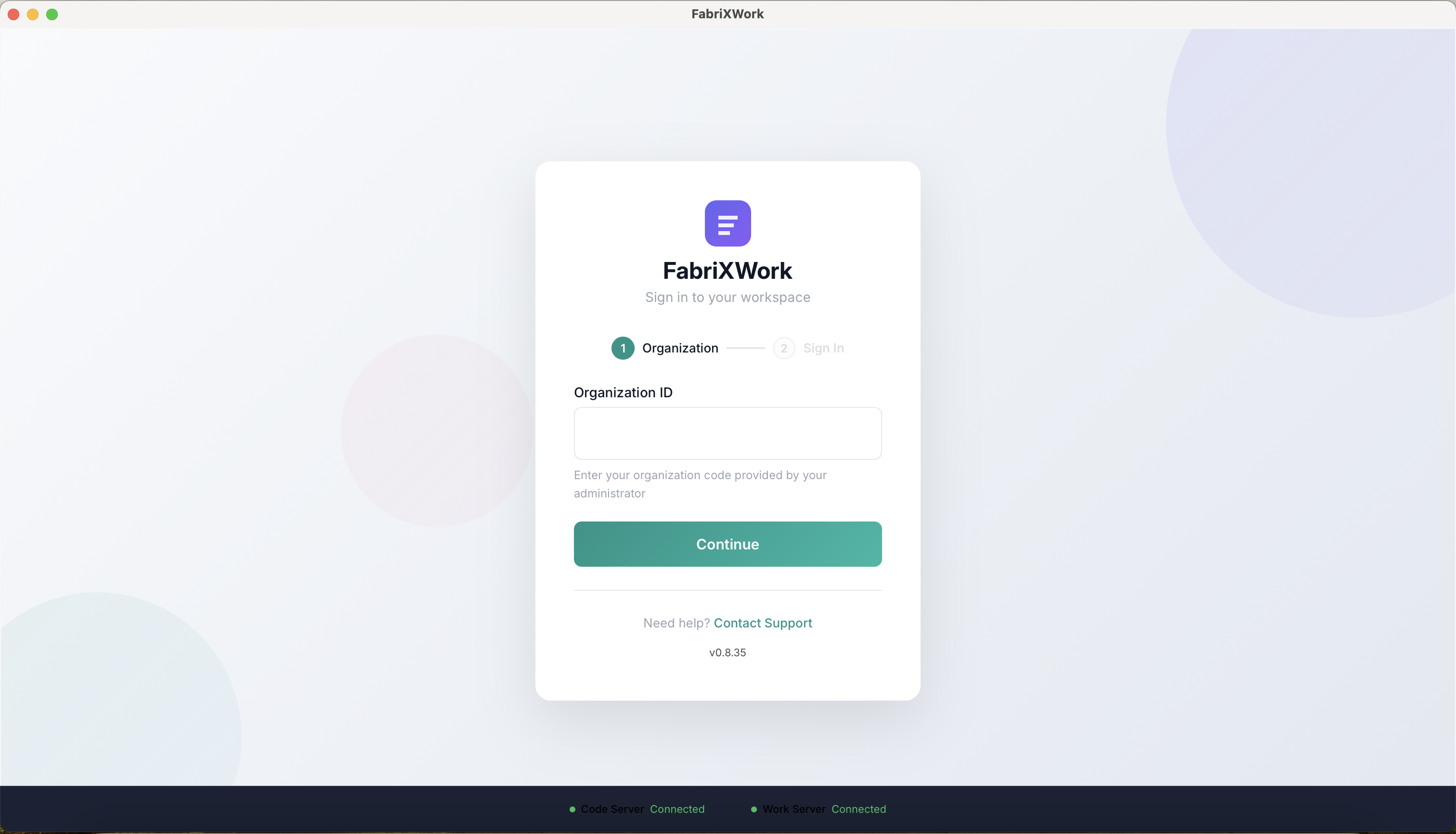
- Enter your credentials (provided by your administrator)
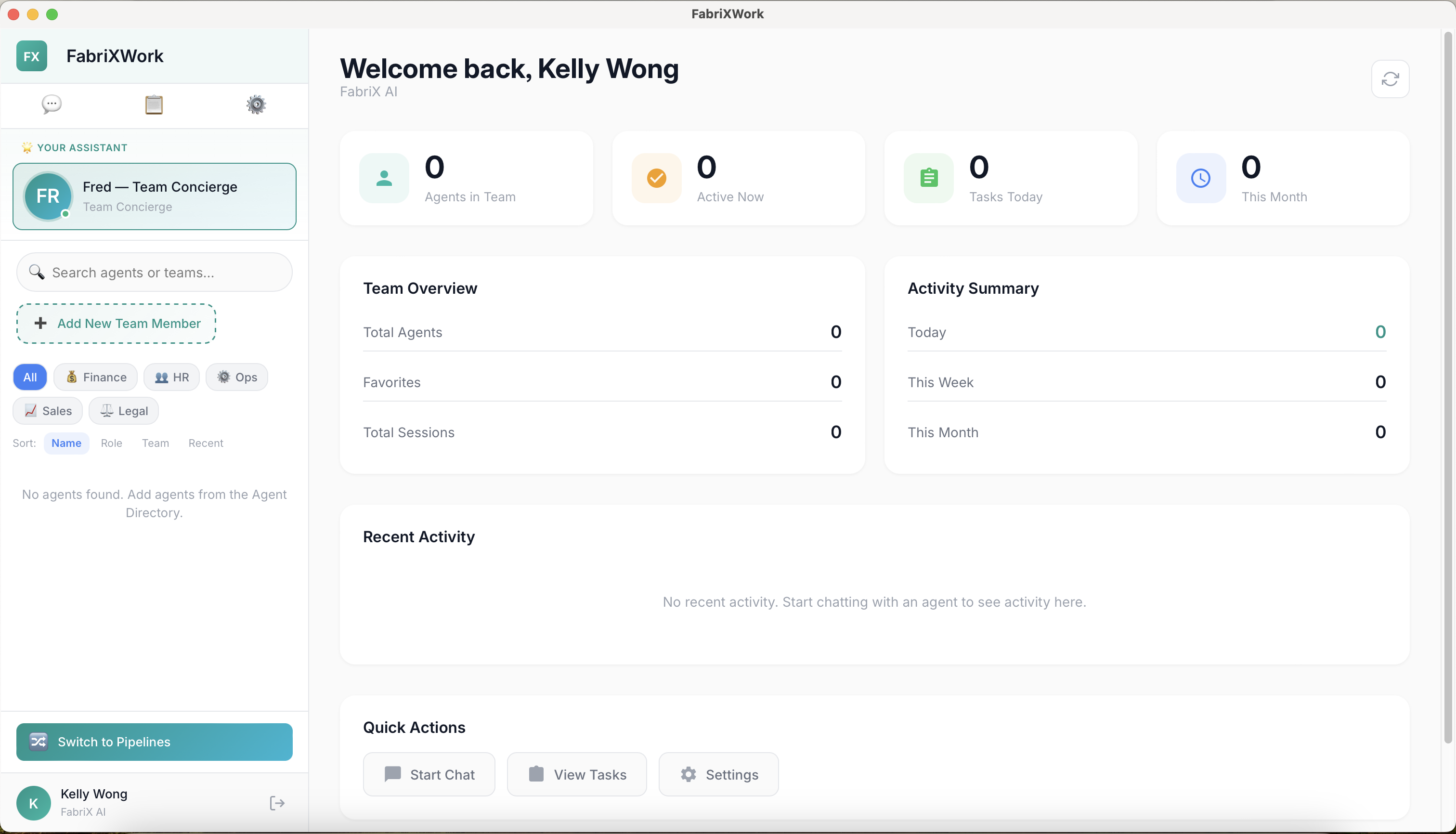
- You should see the welcome dashboard
Windows Installation
Step 1: Download the Application
- Download the FabriXWork ZIP file from the provided link
- Save it to your Downloads folder (or preferred location)
Step 2: Unzip the File
- Right-click the ZIP file
- Select Extract All...
- Choose a destination folder
- Click Extract
Step 3: Run the Installer
- Navigate to the extracted folder
- Double-click the installer file (
FabriXWork Setup.exeor similar) - Follow the installation wizard prompts
Step 4: Install Dependencies (If Prompted)
Note: FabriXWork may require certain dependencies to run properly.
If prompted to install Python:
- Python is required for some agent functionalities
- The installer will guide you through the Python installation
- Accept the default settings unless you have specific requirements
- You may need to restart your computer after installation
If prompted for other dependencies:
- Follow the on-screen instructions
- Accept the license agreements
- Use default installation paths
Step 5: First Login
- Launch FabriXWork from Applications (or your chosen location)
- Enter your organization ID (provided by your administrator)
- Enter your credentials (provided by your administrator)
- You should see the welcome dashboard
Common Setup Issues
macOS Issues
| Issue | Solution |
|---|---|
| "App can't be opened" warning | Go to System Settings → Privacy & Security → Click "Open Anyway" |
| App crashes on launch | Check that you moved the app to Applications folder; try right-click → Open |
| Folder access denied | Go to System Settings → Privacy & Security → Files and Folders → Grant access |
| Login fails | Check your internet connection; verify credentials with admin |
Windows Issues
| Issue | Solution |
|---|---|
| Installer won't run | Right-click → Run as Administrator |
| Python installation fails | Download Python manually from python.org; install first; then retry FabriXWork |
| "Missing DLL" error | Re-run the installer; ensure all dependencies are selected |
| App won't start after install | Check Windows Defender/Antivirus; add FabriXWork to exclusions |
| Login fails | Check your internet connection; verify credentials with admin |
What's Next?
After successful installation:
- ✅ You're logged in with your account
- ✅ You should see the FabriXWork dashboard
Now let's tour the interface so you know where everything is before adding your first agent.
Need Help?
If you encounter issues not covered here:
- See Installation Issues for detailed troubleshooting
- Check Technical FAQ for common questions
- Contact FabriXWork Support Team